I wanted a Windows XP client which was not a member of the domain to have the same look and feel as the rest of the domain member clients. Part of creating this effect was to enable the Ctrl-Alt-Del to login prompt at startup.

In order to enable the Ctrl-Alt-Del prompt at startup in Windows XP you need to set or create the DWORD registry entry “DisableCAD” to 0.

HKLM\SOFTWARE\Microsoft\Windows NT\CurrentVersion\Winlogon
DisableCAD = “0″

You can download this registry file to set this for you.
  Enable Ctrl-Alt-Del Login Prompt for WinXP (140 bytes, 979 hits)

See more information at Microsoft Technet.

The new User Access Control (UAC) in Windows Vista is an interesting feature. Whilst it keeps me well informed as to the security status of each program I run, it can become a hinderence to productivity.

One such issue I am having is loading programs at startup that require Administrative Rights. Currently Vista will not allow an elevated program to run on startup via the usual methods. But there is a work around using the Task Scheduler as I found on the Lavalys forum.

In order to create a task which runs with admin rights, you need to be logged in as an Administrator. These steps will not allow you to run an elevated program if you don’t already have the rights to do so.

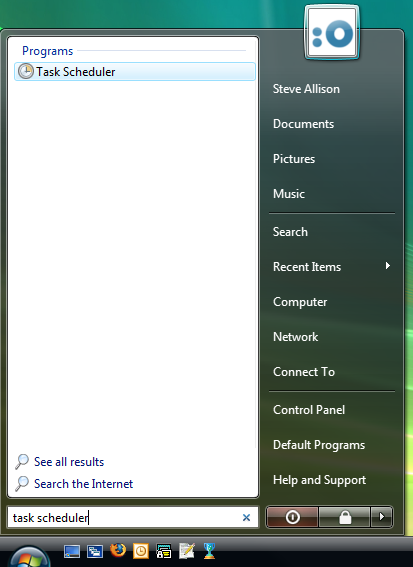
  1. Open Task Scheduler by pressing the Start button and typing task scheduler and pressing enter.

    step1.png

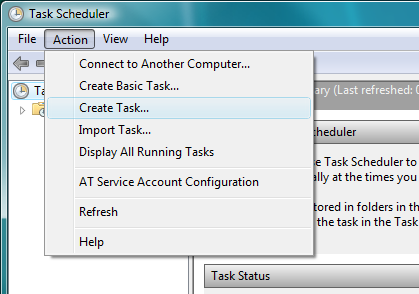
  2. Create a new Task through the Action menu.

    step2.png

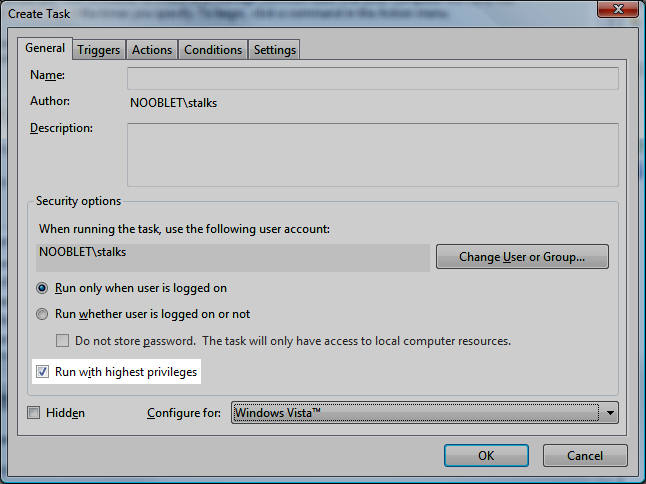
  3. Choose a name for the Task, and make sure Run with highest priveleges is ticked.

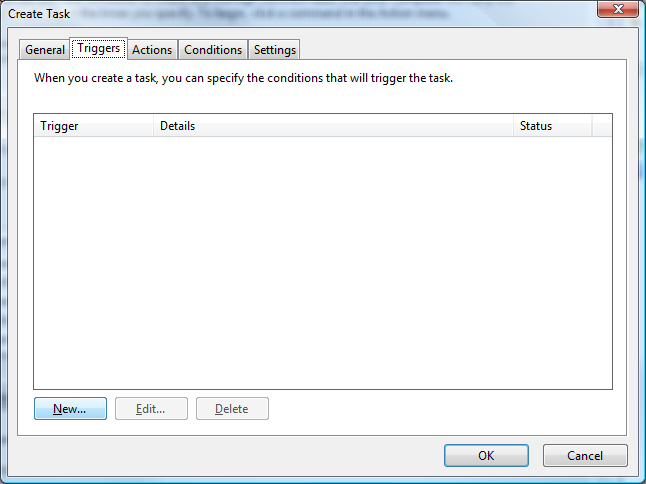
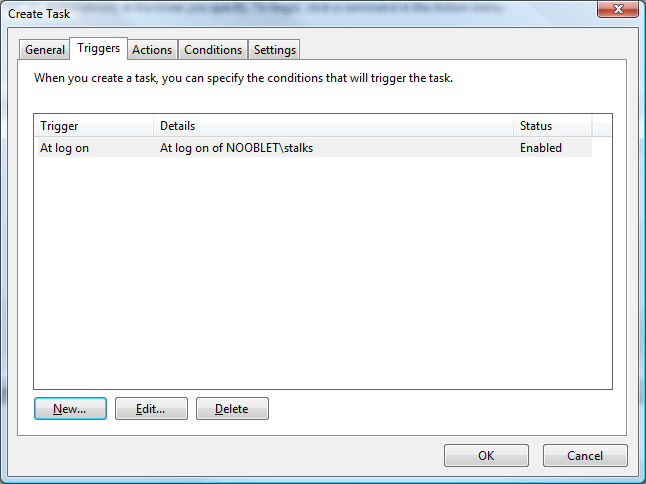
  4. Choose Triggers from the tabs at the top, and click New.

    step4.png

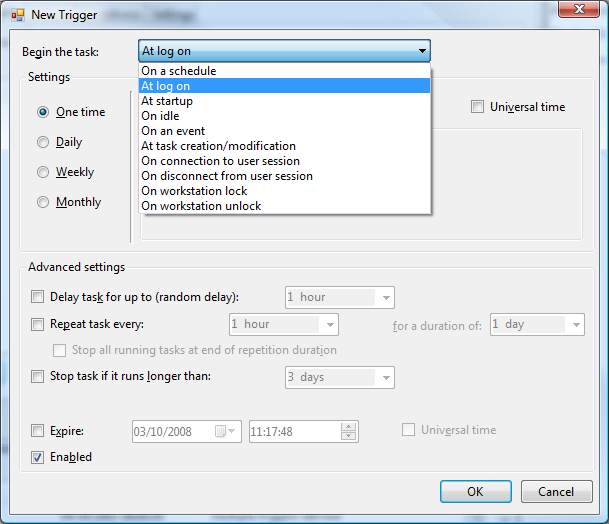
  5. Choose At log on from the Begin a task option.

    step5.png

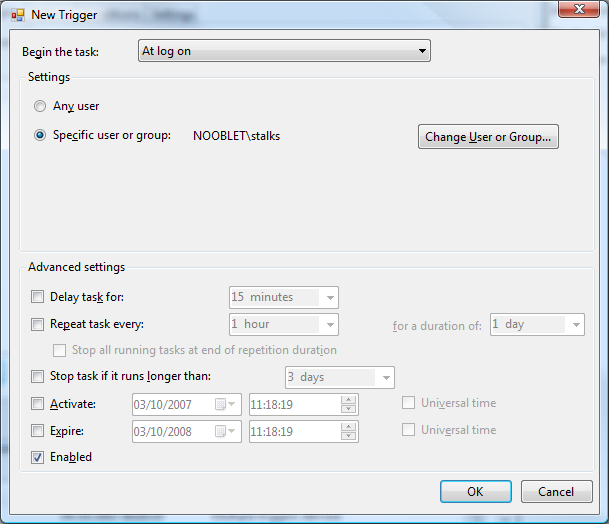
  6. Either pick a user, or choose “Any user” if you want this to run on log on for everyone. Make sure everything else is not ticked except for “Enabled”. Click OK.

    step6.png step6b.png

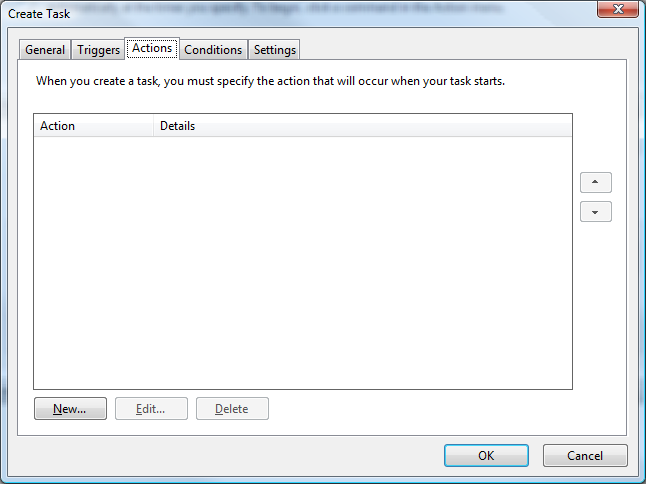
  7. Choose Actions from the tabs at the top, and click New.

    step7.png

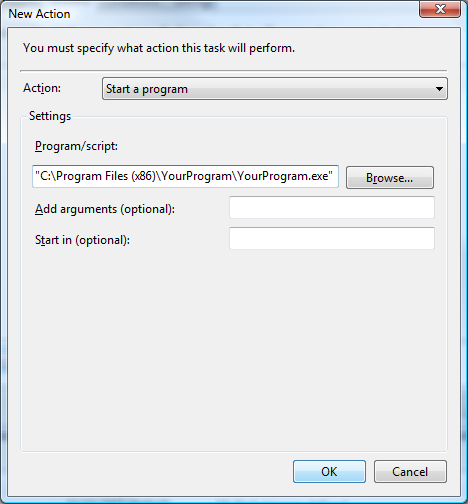
  8. Click the Browse button and find the program you want to load at logon/startup. In the Lavalys example it would be the Everest executable. Click OK.

    step8.png

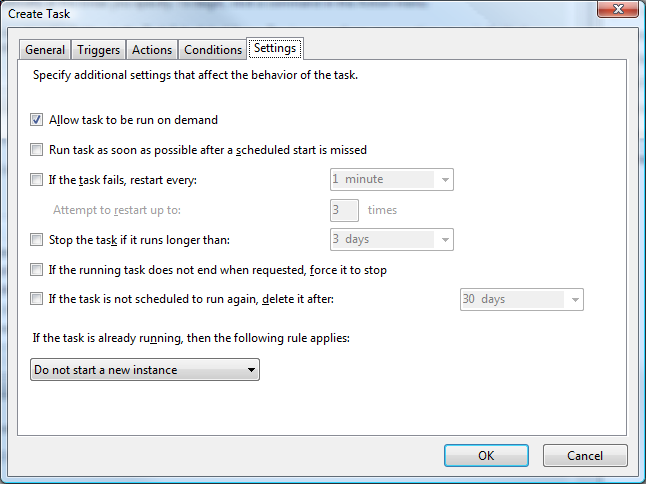
  9. Click the Settings tab and make sure the only checkbox ticked is Allow task to be run on demand.

    step8b.png

  10. Click OK again to save your new task. Check it has been created properly by clicking on Task Scheduler Library on the left pane of the Task Scheduler. Thats it, you’re done. Reboot and see if it works!

    step9.png