Category Archives: Windows

windows

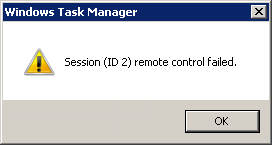
Session (ID X) remote control failed

Posted on .

remote-control-failed

You may find it impossible to remote control a user from Task Manager on Windows Server and get the above error.

If it only works when using the built-in administrator account, then this may be because UAC is enabled. Task Manager needs to be UAC-elevated in order to perform the remote control task.

The long-term fix is to disable UAC like discussed in this Technet forum post.
task-manager-processes-uac

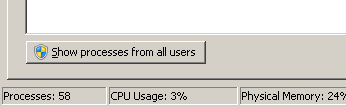
A quicker method, and if you want to keep UAC enabled, is to elevate Task Manager by going to the “Processes” tab and clicking “Show processes from all users” button. This elevates Task Manager to show all processes and then allows you to remote control.

Windows 7 on XEN HVM — Slow Remote Desktop

Posted on .

Update: The same issue and fix are relevant for Windows Server 2008 R2, Server 2012 and Windows 8. Maybe all versions of Windows using the GPL PV drivers.

I just installed a Windows 7 guest onto a Debian Wheezy Xen dom0. I installed these GPLPV drivers v11.0.372. Using RealVNC to setup the machine was fast and responsive, however once I switched over to RDP the machine was acting like a mule. The RDP session was slowly redrawing the screen as each new application loaded. Internet Explorer’s default MSN page with its ever changing news feed image was causing the session to almost lock up.

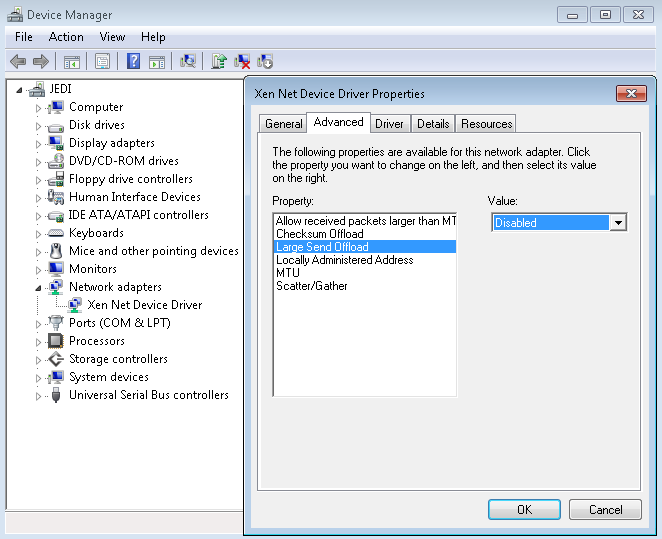
The fix is to disable Large Send Offload on the Xen network adapter.
 
devmgmt_xen

Simple instructions:

  1. Press the Start Orb
  2. Type: “devmgmt.msc” and press enter
  3. In device manager, find Network Adapters
  4. Right click, “Xen Net Device Driver” and choose Properties
  5. Under the advanced tab, click “Large Send Offload” and adjust the Value to “Disabled”
  6. Click Okay (if you did this via RDP, you will lose the connection as the network is reset, just reconnect)

Disable SugarSync Drive

Posted on .

I don’t know what is wrong with developers today, but it is a growing trend to make things “just work” at the expense of leaving any sort of options for the user to self-configure. Extra or advanced options seem to be a taboo with new applications, which is a real shame.

SugarSync v2 beta is one of these applications. Even the installer asks no questions, not letting me choose an installation folder, or where to put the SugarSync folder to begin with.

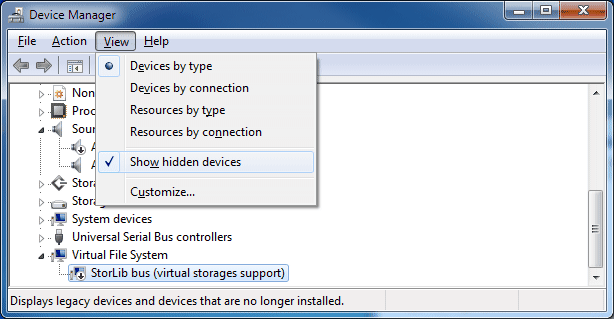
Well, one thing it installs is a virtual disk driver that enables a new SugarSync virtual drive, in my case G:. To disable this, open device manager as an administrator and disable the virtual disk driver.

devmgmt-disable-sugarsync-drive

You will need to show hidden devices to see it. Right click the device and disable.

Elevated Command Prompt


In order to get a command prompt with admin rights in Windows 7 or Vista,

  1. Click Start Menu
  2. Type “cmd”
  3. Press Alt+Enter

or

  1. Click Start Menu
  2. Type “cmd”
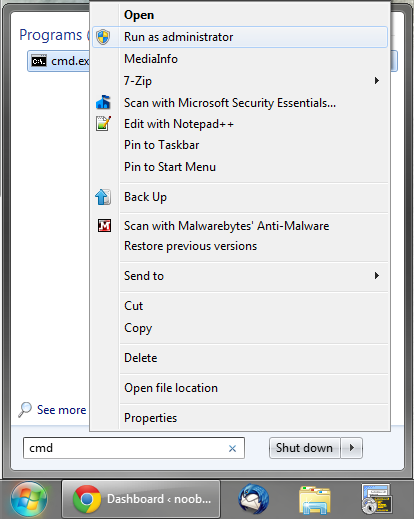
  3. Right click “cmd.exe”
  4. Click “Run As Administrator”

start-menu-run-as-admin