Category Archives: Windows

windows

Fix Vista not indexing files


I had a strange problem where Windows Vista’s desktop search wasn’t indexing files. I tried to rebuild the index and after a couple of weeks only 10 files were indexed.

I finally came accross the fix to this problem here to change the Search and Index power options from PowerSaver to something else.

  1. Open Power Options in Vista (Control Panel -> System and Maintenance -> Power Options).
  2. Under your current selected plan, click “Change plan settings”.
  3. Click “Change advanced power settings”.
  4. Under “Search and Indexing”, change to Balanced or High Performance.

The indexing took about an hour after that, and all missing files were finally included.

Prevent Vista entering standby when running O&O Defrag


O&O Defrag doesn’t prevent the computer from entering sleep/standby/hibernate whilst in use. This has caused an issue in the past of a corrupted drive.

This work around should prevent the PC from entering sleep whilst O&O Defrag runs a scheduled job.


Summary: Create a new power plan in Vista that doesn’t put the computer to sleep. Use the command-line utility PowerCFG and O&O Defrag’s pre / post commands to switch to and from the new power plan when defragmenting.


1. Press the Start button, type “Power Options”, and press Enter.

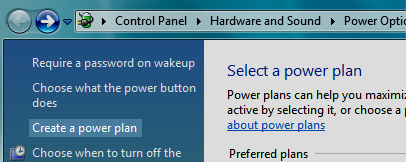
2. In the Power Options dialog, click “Create a power plan” on the left.
prevent-vista-entering-standby-when-running-oo-defrag-image1

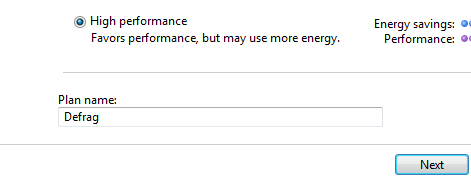
3. Select “High Performance” as the plan to base the new one on, and give this plan the name of “Defrag”. Click Next.
prevent-vista-entering-standby-when-running-oo-defrag-image2

4. Choose “Never” for the option “Put the computer to sleep” and click Create.

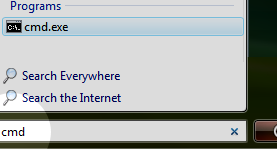
5. Open a command prompt (press Start, type “cmd” and press enter).
prevent-vista-entering-standby-when-running-oo-defrag-image3

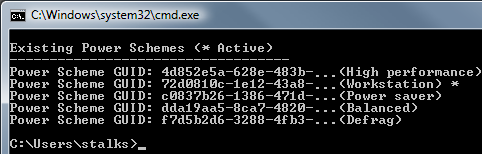
6. Type “powercfg /list” at the command prompt and press enter.

7. Each scheme has a unique GUID. Note which GUID is the currently active one (noted with an asterisk *). In the example the GUID for “Workstation” is the active one. Also note the new “Defrag” scheme and its GUID. We use these GUID’s to switch power scheme in O&O Defrag.
prevent-vista-entering-standby-when-running-oo-defrag-image4

8. Open O&O Defrag, find the Job list with your scheduled task. In O&O Defrag 11 the “Jobs” tab is at the bottom of the screen.

prevent-vista-entering-standby-when-running-oo-defrag-image5

9. Create a new task, or edit an existing one.

10. Under the tab, “Pre-Job Execution”, tick the box “Run the following commands before job execution”.

11. In the text area underneath you need to add the command to set the active power scheme to the new one we just made. The command syntax is powercfg -setactive <GUID>, where you need the GUID of the new power scheme as found earlier. In the example, you can see another powercfg command, this is explained in an earlier post.
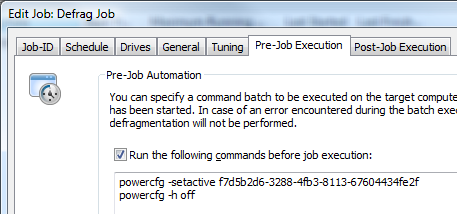
prevent-vista-entering-standby-when-running-oo-defrag-image6

12. Select the tab “Post-Job Execution” and tick the box for “Run the following commands after job execution”. Then put in the same command as before, but instead, use the GUID for your currently active power scheme, as found earlier.
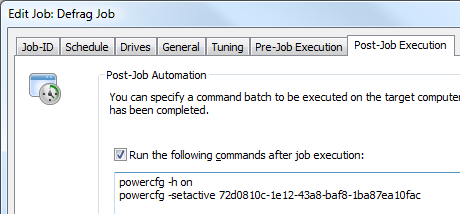
prevent-vista-entering-standby-when-running-oo-defrag-image7

13. Click OK and you’re done! When this job begins, the power scheme with Sleep disabled will be made active, and then once completed, it shall activate the original power scheme.


Using this workaround you prevent your computer from going to sleep during defrag, so you can leave the PC safe inthe knowledge that it will complete its defrag, and then put itself to sleep shortly after.

Disable hibernation during O&O Defrag job


If you have hibernation enabled in Windows Vista, then there will be a file at C:hiberfil.sys which is the same size as the amount of ram in your computer. This file is locked and cannot be defragmented.

You can automatically and temporarily disable hibernation and remove the hiberfil.sys for the duration of the defrag. In my case this unlocks 4GB of space on the system drive.

Create a new job, or edit an existing job in O&O Defrag and under “Pre-Job Execution” tick the “Run the following commands…” box, and in the text area underneath put:
powercfg -h off
And then under the tab for “Post-Job Execution” tick the same box, “Run the following commands…”, and in the text area underneath put:
powercfg -h on

Synchronize Windows with a Linux ntpd server


I have a Windows Server 2008 DC and I wanted to use my internal time server on a linux box running ntpd.

After a little hunting around, I found the command required to set Windows up to use the correct time peer.
w32tm /config /update /manualpeerlist:"0.pool.ntp.org,0x8 1.pool.ntp.org,0x8" /syncfromflags:MANUAL

After making this change, you need to restart the Windows Time Service by issuing the following 2 commands,
net stop w32time
net start w32time

If you have problems, first make sure the Windows Time Service is enabled.

This works with Windows XP, Windows Vista, Windows Server 2003 and Windows Server 2008.